Your Profile Menu is now located on the left-hand sidebar of your dashboard.
At the top of the sidebar, you’ll see your profile image or company logo, along with your name and email address. Clicking this area opens your profile options and account settings.
This menu gives you quick access to your personal information, preferences, and logout option.
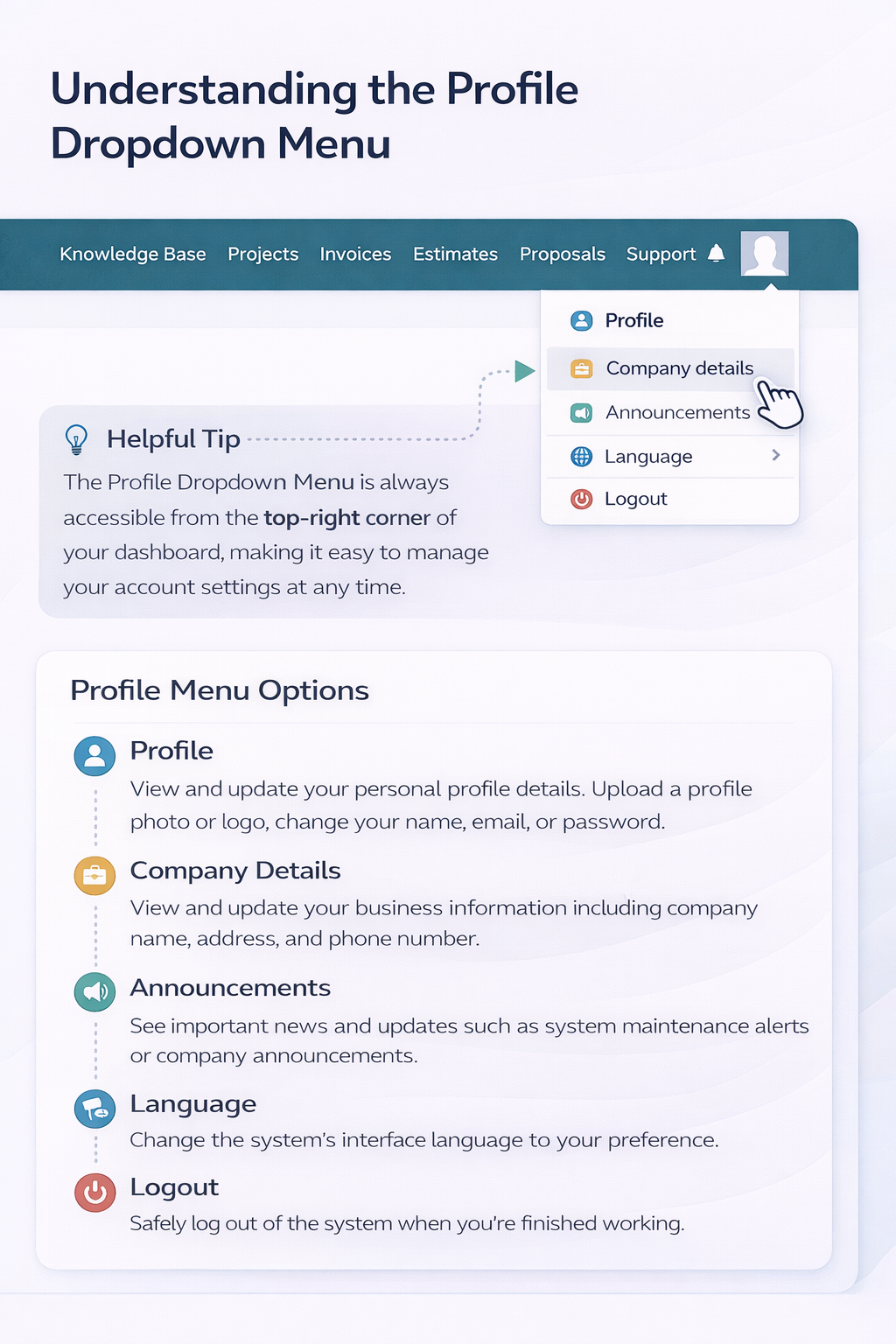
1. My Profile
This section allows you to view your personal account information, such as your name and email address associated with your login.
Use this area to review your account details and confirm everything is correct.
2. My Timesheets (if enabled)
This section displays your logged work hours and activity tracking.
You can:
-
View submitted timesheets
-
Review time tracked on tasks or projects
Note: This option may vary depending on your user role or permissions.
3. Edit Profile
This is where you can update your personal profile details.
You can:
-
Upload or change your profile photo or company logo
-
Update your name or contact information
Your profile image or logo will appear throughout the system to personalize your experience.
4. Language
Use this option to change the system’s interface language.
Once selected:
-
The entire system updates automatically
-
No page refresh is required
5. Logout
This option allows you to safely log out of your account when you are finished.
It’s recommended to log out when using a shared or public computer.
Important Note for Users
If you previously accessed these options from the top-right corner, they are now available from the left sidebar profile section.
All features remain the same — only the location has changed.